

Troubleshooting Wi-Fi Connection Issues

Last updated: Apr 22, 2026
806
views

When unable to connect to RCBCpublicWifi, please refer to the following steps.
Before all else, try restarting your computer. If that does not resolve the issue, continue reading.
Forgetting Wi-fi networks
For Windows
- Close all browser windows.
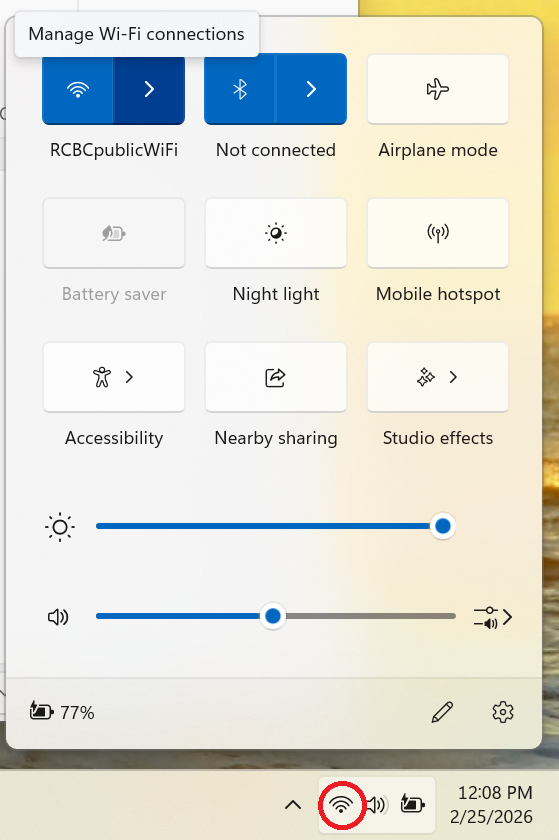
- Navigate to the wifi settings of your device by right clicking on the network symbol in the lower right hand corner of the screen and selecting 'Manage Wi-Fi Connections'
- Right click RCBCpublicWifi and select ‘forget network’.
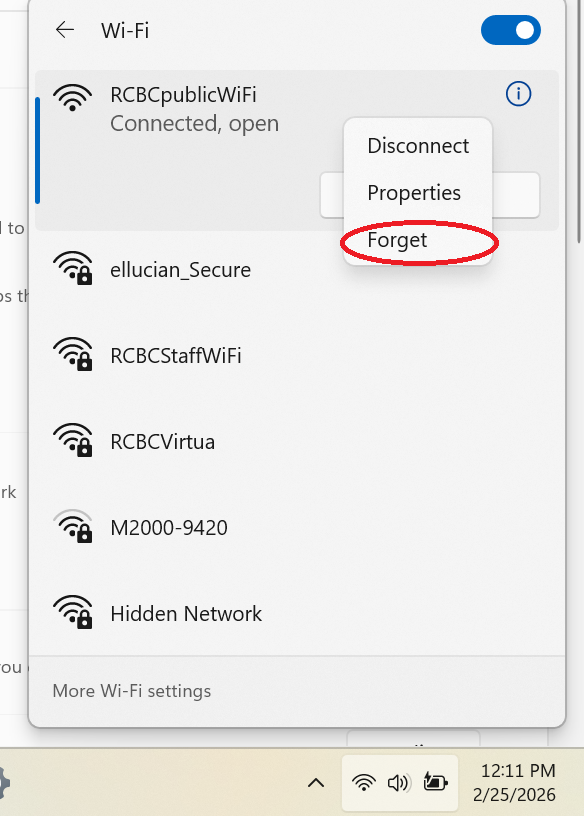
- Once the network has been forgotten, reconnect to RCBCpublicWifi. Wait 15 seconds for a connection to establish, then attempt to open a browser window. Agree to the user policy that appears as normal. Network connectivity should now be functional.
For Mac
- Close all browser windows.
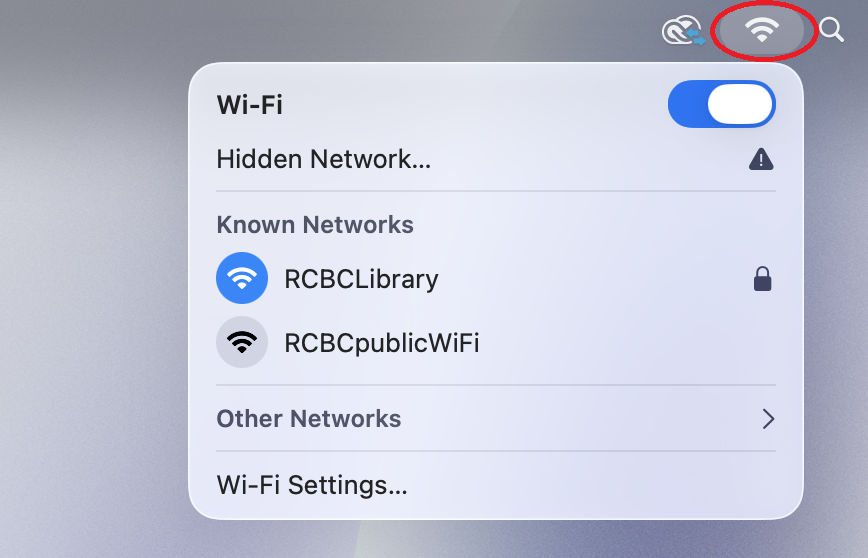
- Navigate to the wifi settings of your device by clicking on the network symbol in the upper right hand corner of the screen and selecting ‘Wi-Fi Settings’.
- Select the bubble beside 'RCBCPublicWifi' and click 'forget network'.
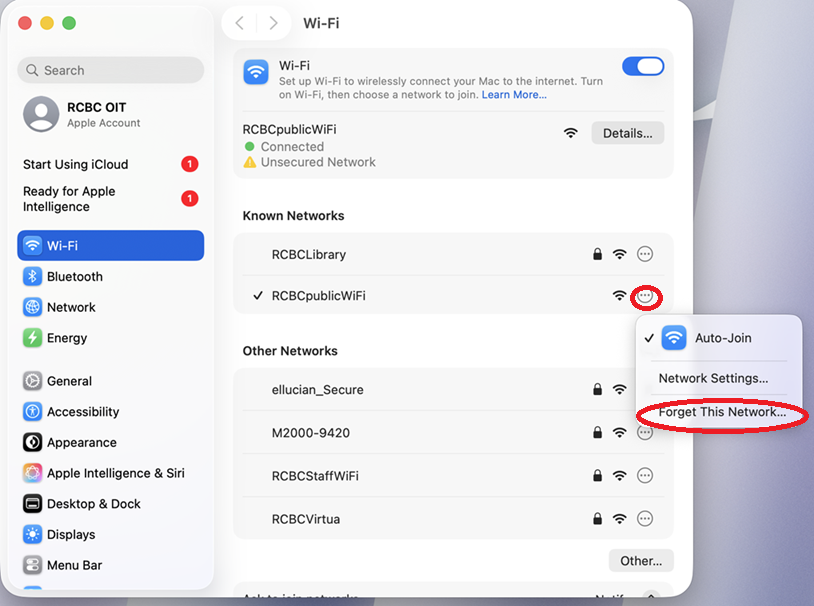
- Once the network has been forgotten, reconnect to RCBCpublicWifi. Wait 15 seconds for a connection to establish, then attempt to open a browser window. Agree to the user policy that appears as normal. Network connectivity should now be functional.
If these techniques do not resolve your issue, please put in a ticket for further assistance.

