Configuring spell check in Chrome for use with delegated email accounts

Apr 09, 2026
392

This article outlines the steps for ensuring spell check is configured properly within Chrome. This is important for users with delegated email access to departmental email accounts since most native smart features are disabled while using delegated accounts. To ensure this is configured properly, please follow the below steps:
- Open the delegated email account on your PC.
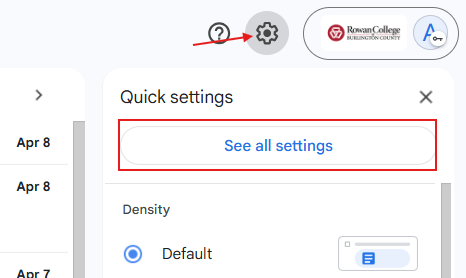
- Now click the gear icon toward the top right and then click See all settings
- From the general tab, scroll down to the Smart Features section and uncheck the Smart Features box shown below. Then click Turn Off and Reload when prompted.

- Now, in the Chrome address bar at the top of the screen. Copy and paste the following text into the box and then hit Enter: chrome://settings/languages
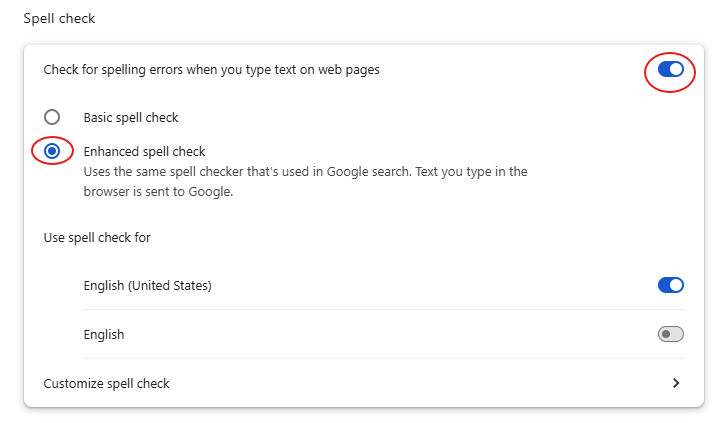
- You should now be brought to a screen with spell check settings. Configure the settings as shown below. The setting changes should take effect right away.
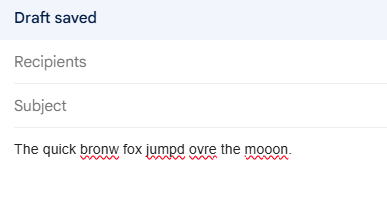
- Re-open your delegated email account and Compose a new email. Try typing some text in, while intentionally misspelling a few lines to verify the red spell check prompts are appearing as expected.
-