

How to Clear Google Chrome Cache - Updated 2026

Jan 16, 2026
1404

Follow the steps listed below to clear your Cache in the Google Chrome Browser.
- Inside your Google Chrome Browser in the top right corner, Click the three dots to display a drop-down menu. (See Image Below)
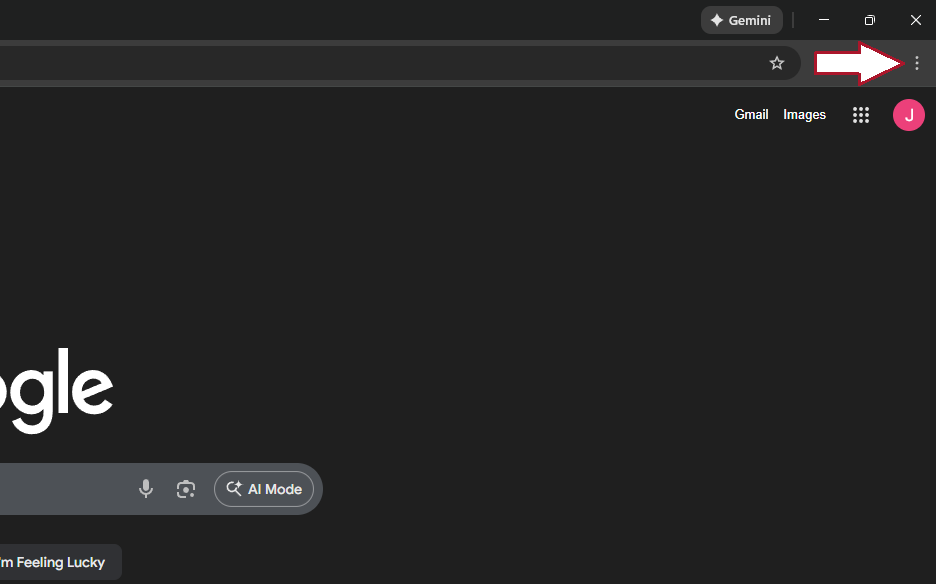
(Chrome setting menu)
- In the drop-down menu select the "Delete browsing data..." option. (See Image Below)
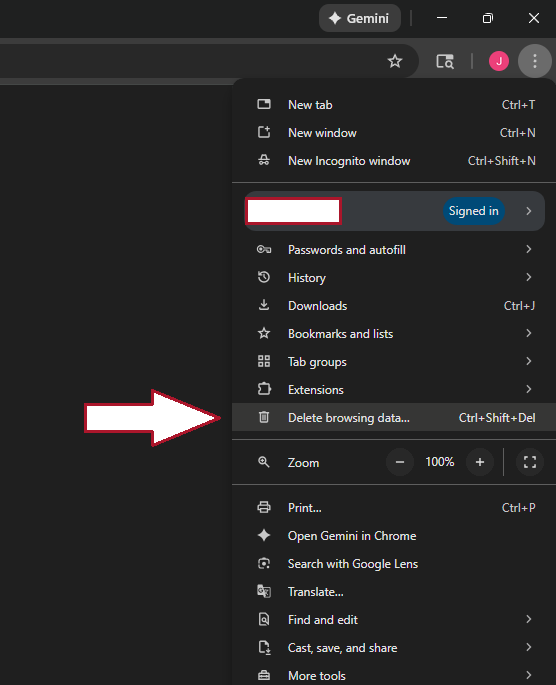
(Delete browsing data option)
- After selecting delete browsing data option you will be taken to another page with a pop-up for deleting browsing data. Select the "Cookies and other site data", "Cached images and files" check boxes and the "All time" button indicated by the arrows in the following image. (See Below Image)
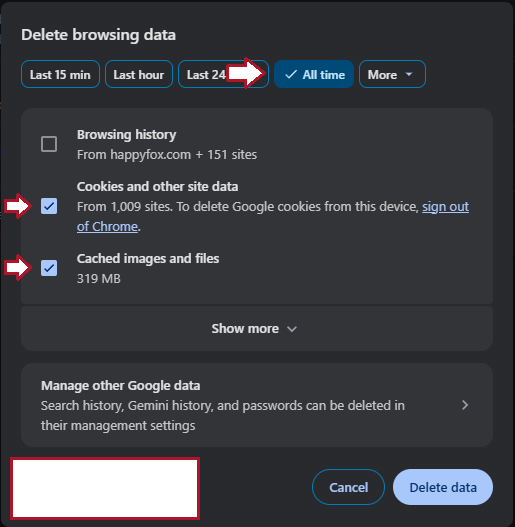
(Deleting browser data options)
- Once selected click the "Delete data" button to finish the process. (See Below Image)
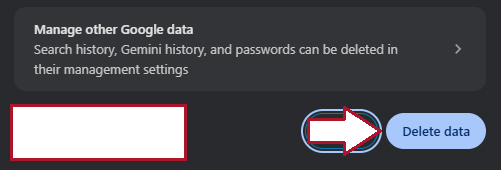
(Delete data button)
Once these steps are complete you have successfully deleted you Google Chrome browser cache data.

