


 1296
1296
New Sign In Process Beginning in January
** This guide applies to most RCBC adjunct faculty and part-time employees.
The college will upgrade its BaronOne login system on Friday, January 16. To prepare for this change, we’re requesting all employees sign in to this new system at least once before January 16th to ensure continued access once the switchover to the new system is complete.
 Important note: Most adjunct faculty and part-time employees will need to enter a temporary password during this process. The default password format will be: capital first initial + lowercase last initial + birth year + employee ID.
*Example: Az19770913254
If you are using the Microsoft Authenticator, please have it downloaded and ready to go on your mobile device. (FREE download)

Let's get started
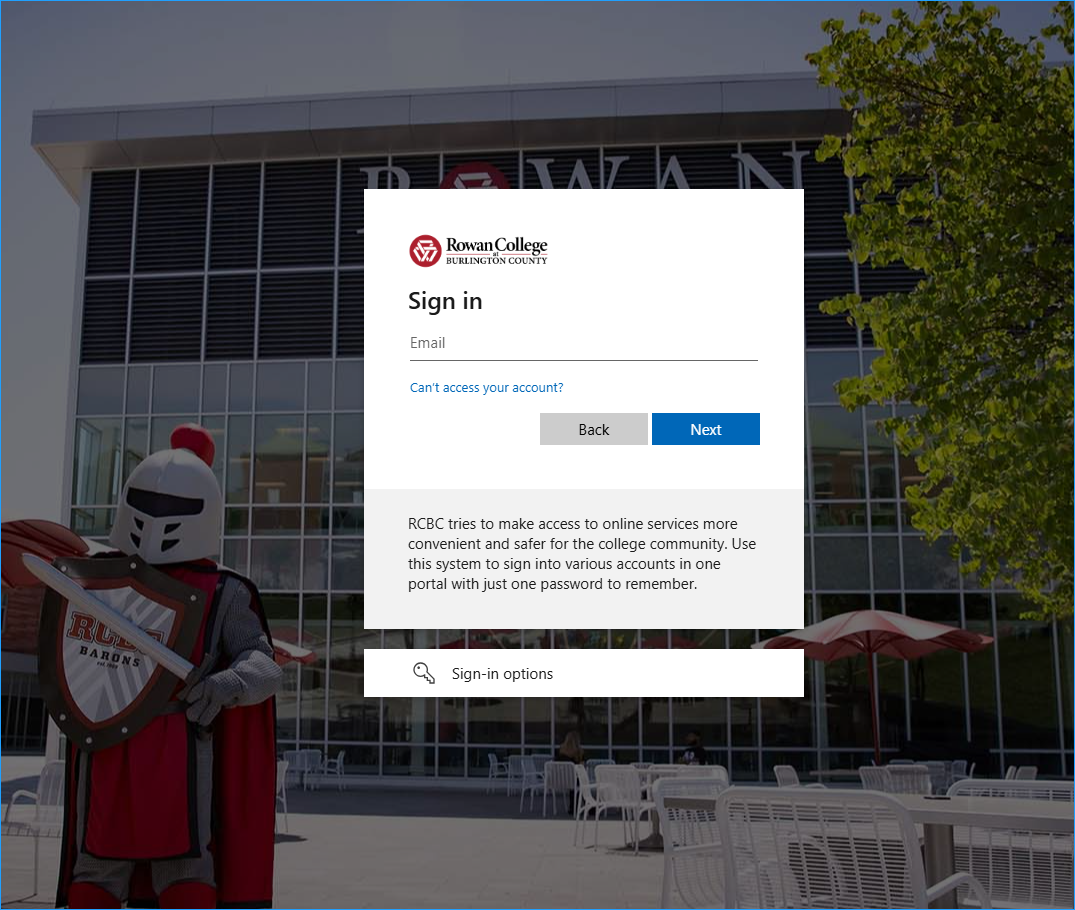
- Click Start the Process. This will open the Microsoft sign in screen where you'll enter your full RCBC email address, then click Next.
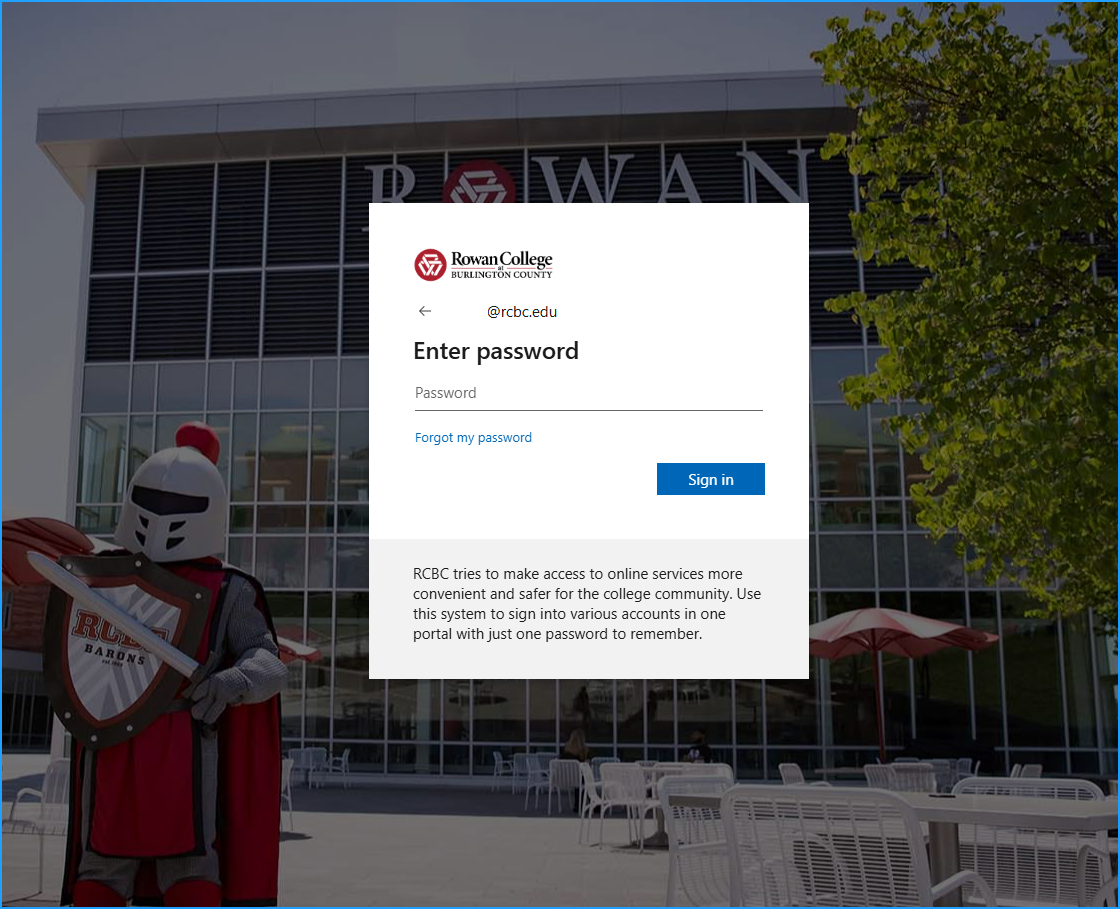
- Enter your password using the default password format: capital first initial + lowercase last initial + birth year + employee ID. Then click Sign in.
- Example: Az19770913254
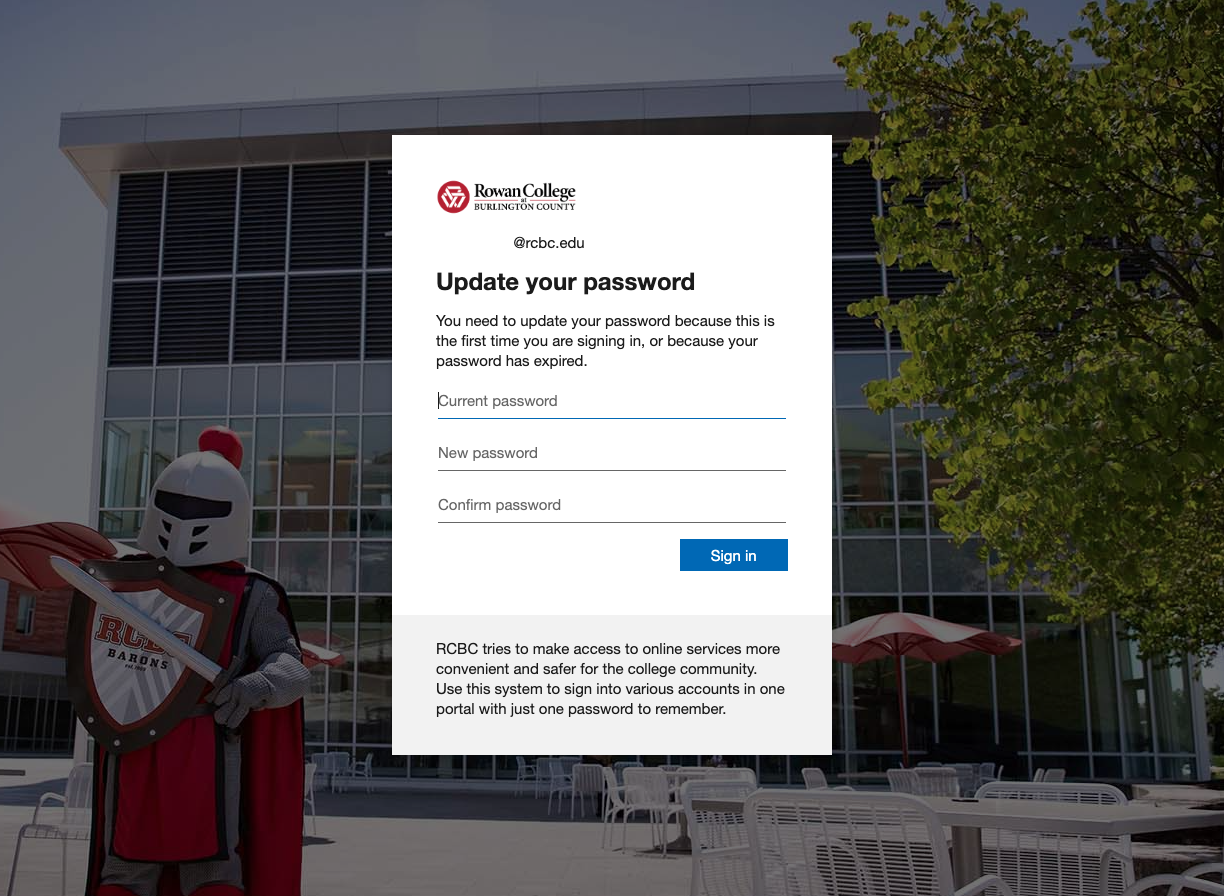
Update Your Password
- After entering the default password, you will be prompted to update your password in accordance with the requirements outlined below. Update your password and then click 'Sign in'.
Password Requirements
- Minimum of 8 characters
- Must include at least three of the following:
- Uppercase letters
- Lowercase letters
- Numbers
- Symbols
- Cannot match any password on banned lists (e.g., password123)
- Must be different from your current password
When you see the ‘Let’s keep your account secure’ screen, click Next to set up multi-factor authentication. Leave this page open while you complete the next step.
Set Up Your New Multi-Factor Authentication
You will now be prompted to set up a new Multi-Factor Authentication (MFA) method. We recommend using Microsoft Authenticator. However, other available options are shown below.
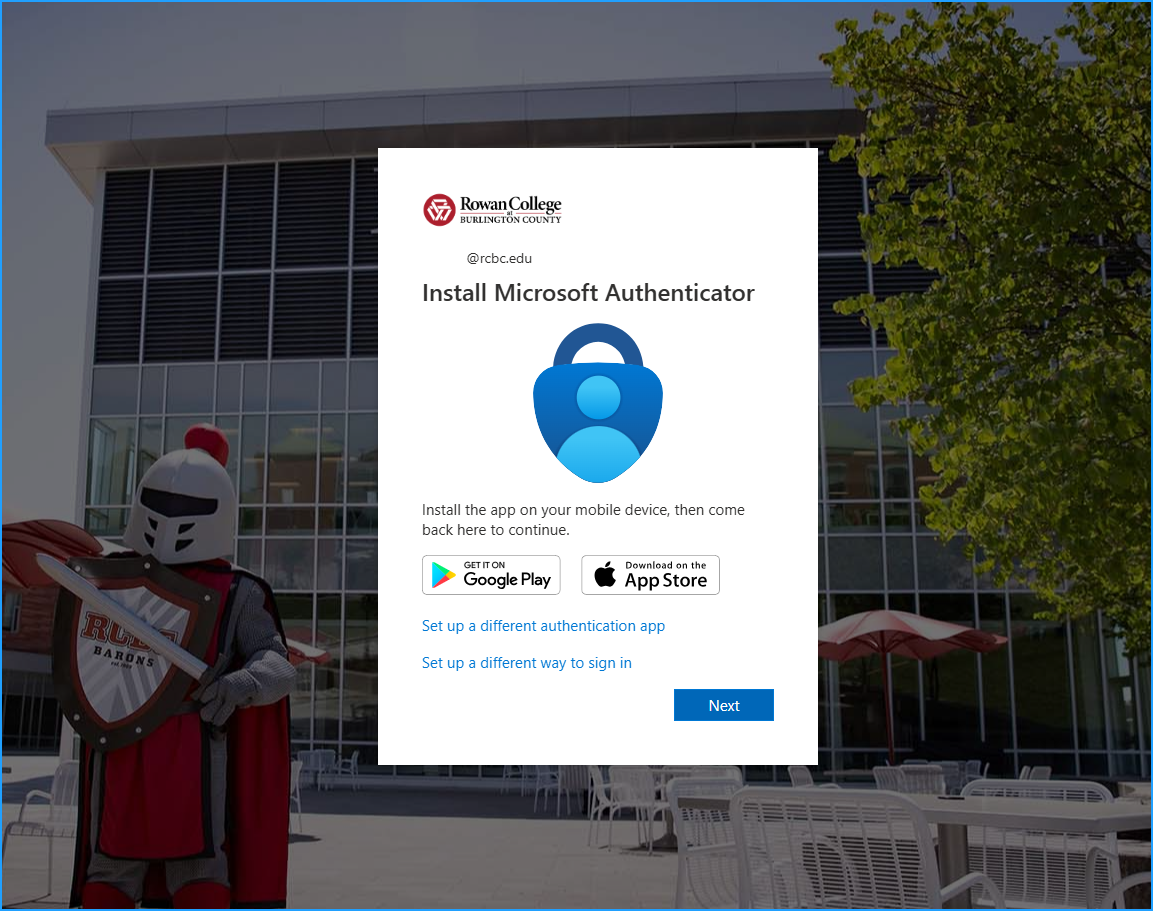
Available MFA methods include:
- Microsoft Authenticator (recommended)
- Google Authenticator (Click 'Set up a different authentication app')
- Phone call or text message (Click 'Set up a different way to sign in')

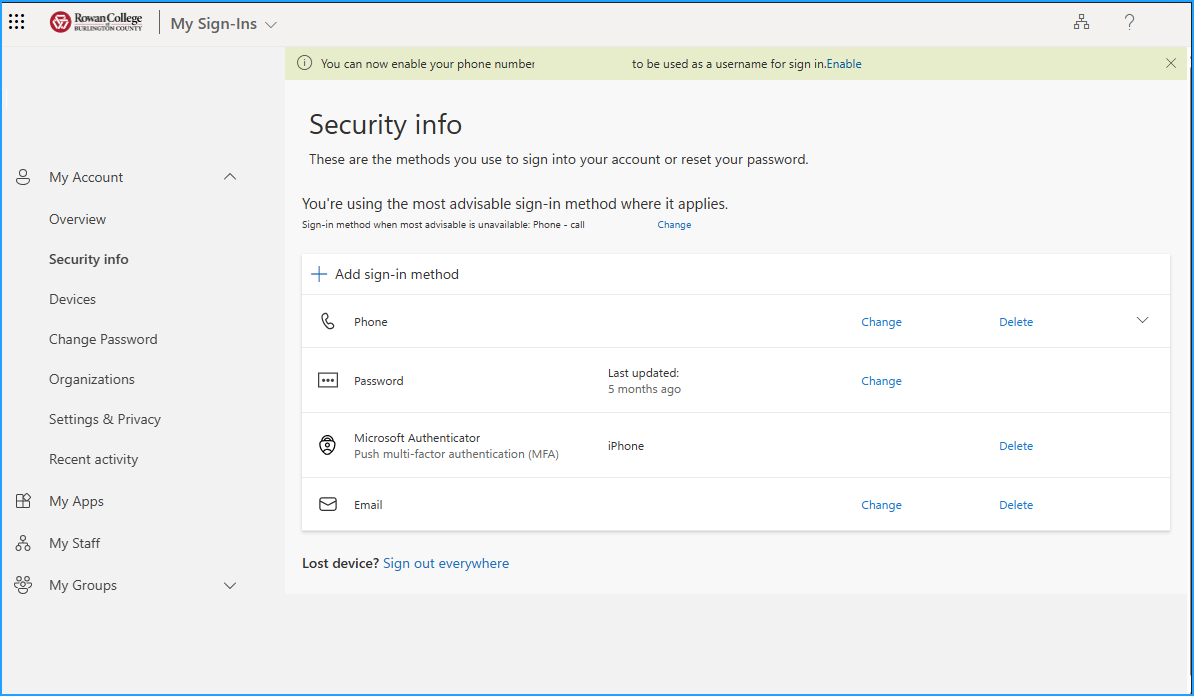
** Note - Staff who were previously assigned an Office 365 license by RCBC may already be in the Entra system and will already have MFA set up. If so, you may see a different prompt upon signing in asking you to provide the MFA verification you previously configured. Simply continue through the process until you reach the Security Info page shown below.
What to know about Microsoft Authenticator
- Throughout the Microsoft Authenticator setup process, you may be asked to allow camera access on your device to enable scanning the provided QR code. You will also be asked to allow notifications in order to receive a regular prompt on your device upon signing in to BaronOne.
- For added security, Microsoft Authenticator will ask you to enter your device's pin code or will utilize your device's biometric security capabilities (facial or fingerprint recognition) to access the app. This additional security step will be required each time you utilize Microsoft Authentication for signing into BaronOne.
Getting started with Microsoft Authenticator
- Download the Microsoft Authenticator app from your device's App Store.
- Open the app and follow the prompts to initiate the Authenticator app and allow access to your device's camera and push notifications.
- Return to the Entra sign in window on your web browser.
- Follow the on-screen steps to scan the provided QR code and complete your authenticator set up.
- You will now begin receiving an on-screen code each time you log in to Entra and will see this prompt each time you sign into BaronOne beginning January 16th.
- Once you have this code, head back to your Microsoft authenticator app and enter it in the box provided.
Once you have set up your new MFA, you will be asked whether you want to stay signed in to reduce the number of sign in prompts. Select your preferred option to continue.
Congratulations!
Seeing the 'Security info' page confirms that you’ve successfully signed in to the new system, Microsoft Entra. From this page, you can add additional MFA methods to your account, which can serve as a backup in the event you lose access to your primary MFA method. You may explore the page or close the window as you won’t need to sign in again until after January 16.
If you do not see the 'Security info' page or encounter any errors during sign in, please Submit a Ticket to let us know.

